

--dev flag that spins up the Parallax client in “developer mode”. This creates a single-node Parallax test network with no connections to any external peers. It exists solely on the local machine. Starting the Parallax client in developer mode does the following:
- Initialises the data directory with a testing genesis block
- Sets max peers to 0 (meaning the Parallax client does not search for peers)
- Turns off discovery by other nodes (meaning the node is invisible to other nodes)
- Sets the gas price to 0 (no cost to send transactions)
- Uses the Clique proof-of-authority consensus engine which allows blocks to be mined as-needed without excessive CPU and memory consumption
- Uses on-demand block generation, producing blocks when transactions are waiting to be mined
Prerequisites
It is assumed that the user has a working the Parallax client installation (see installation guide). It would also be helpful to have basic knowledge of the Parallax client and the Javascript console. See Getting Started. Some basic knowledge of Solidity and smart contract deployment would be useful.Start the Parallax client in Dev Mode
Starting the Parallax client in developer mode is as simple as providing the--dev flag. It is also possible to create a realistic block creation frequency by setting --dev.period 5 instead of creating blocks only when transactions are pending. There are also additional configuration options required to follow this tutorial.
Remix will be used to deploy a smart contract to the node which requires information to be exchanged externally to the Parallax client’s own domain. To permit this, enable http and the net namespace must be enabled and the Remix URL must be provided to --http.corsdomain. For this tutorial some other namespaces will also be enabled. The full command is as follows:
eth.accounts:
eth.accounts[0] or as eth.coinbase:
web3.FromWei() function:
web3.fromWei() is less error prone because the correct multiplier is built in. These commands both return the following:
eth.accounts in the Javascript console should display an array containing two account addresses, one being the coinbase and the other being the newly generated address. The following command transfers 50 Laxes from the coinbase to the new account:
eth.getTransaction():
A simple smart contract
This tutorial will make use of a classic example smart contract,Storage.sol. This contract exposes two public functions, one to add a value to the contract storage and one to view the stored value. The contract, written in Solidity, is provided below:
Compile and deploy using Remix
In a web browser, open https://remix.ethereum.org. This opens an online smart contract development environment. On the left-hand side of the screen there is a side-bar menu that toggles between several toolboxes that are displayed in a vertical panel. On the right hand side of the screen there is an editor and a terminal. This layout is similar to the default layout of many other IDEs such as VSCode. The contract defined in the previous section,Storage.sol is already available in the Contracts directory in Remix. It can be opened and reviewed in the editor.
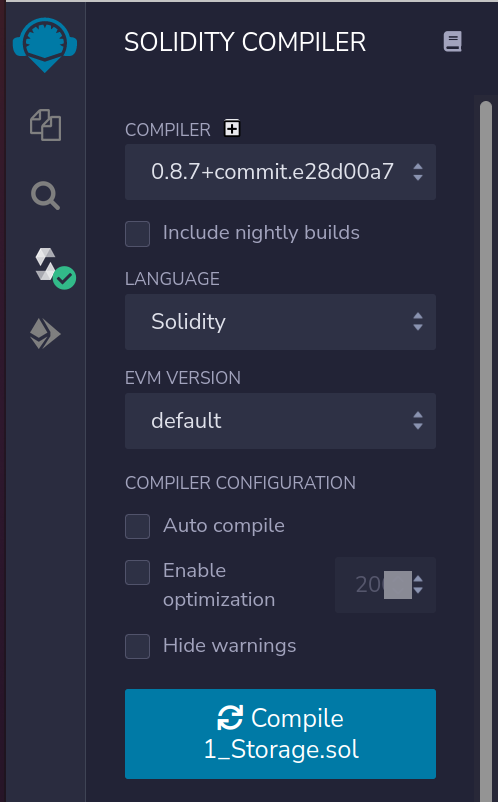
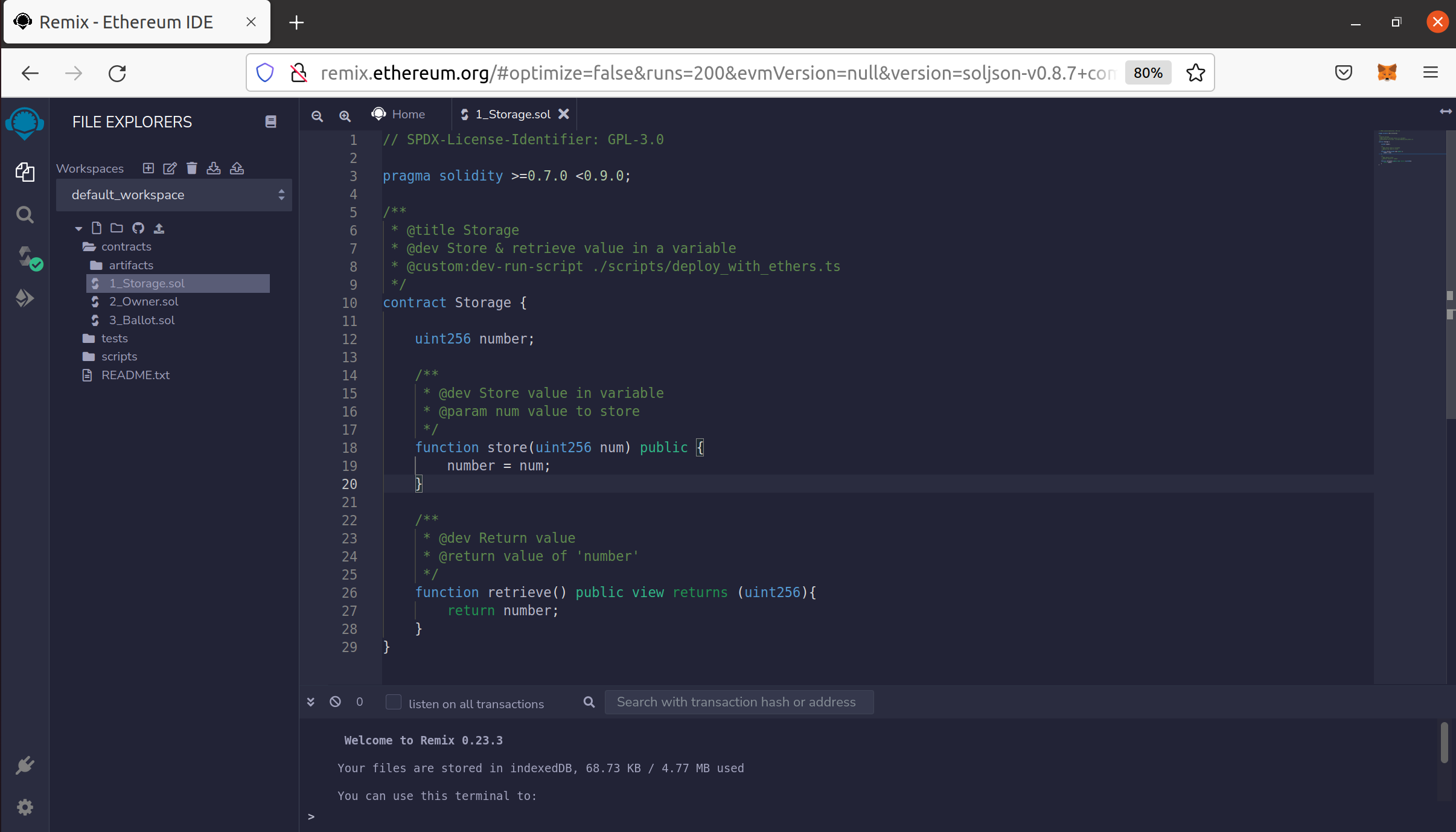 The Solidity logo is present as an icon in the Remix side-bar. Clicking this icon opens the Solidity compiler wizard. This can be used to compile
 Storage.sol ready. With Solidity.sol open in the editor window, simply click the Compile 1_Storage.sol button. A green tick will appear next to the Solidity icon to confirm that the contract has compiled successfully. This means the contract bytecode is available.
 Below the Solidity icon is a fourth icon that includes the Ethereum logo. Clicking this opens the Deploy menu. In this menu, Remix can be configured to connect to the local Parallax client. In the drop-down menu labelled
 ENVIRONMENT, select Injected Web3. This will open an information pop-up with instructions for configuring the Parallax client - these can be ignored as they were completed earlier in this tutorial. However, at the bottom of this pop-up is a box labelled Web3 Provider Endpoint. This should be set to Parallax client’s 8545 port on localhost (127.0.0.1:8545). Click OK. The ACCOUNT field should automatically populate with the address of the account created earlier using the Parallax client Javascript console.
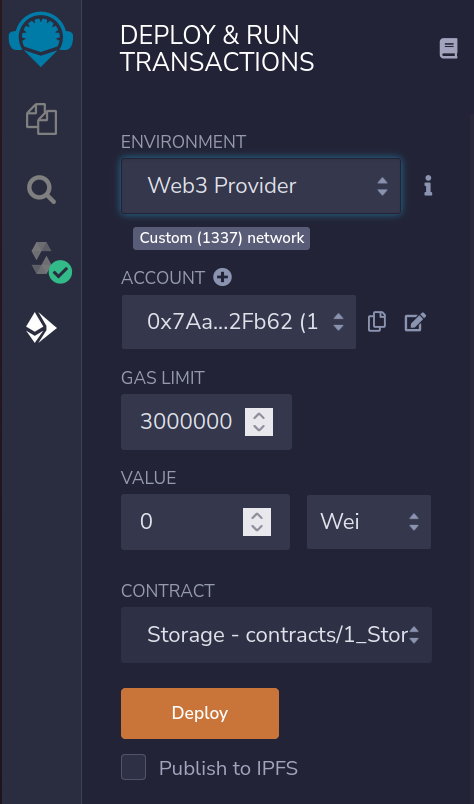 To deploy
 Storage.sol, click DEPLOY.
The following logs in the Parallax client terminal confirm that the contract was successfully deployed.
Interact with contract using Remix
The contract is now deployed on a local testnet version of the Parallax blockchain. This means there is a contract address that contains executable bytecode that can be invoked by sending transactions with instructions, also in bytecode, to that address. Again, this can all be achieved by constructing transactions directly in the Parallax client console or even by making external http requests using tools such as Curl. Here, Remix is used to retrieve the value, then the same action is taken using the Javascript console. After deploying the contract in Remix, theDeployed Contracts tab in the sidebar automatically populates with the public functions exposed by Storage.sol. To send a value to the contract storage, type a number in the field adjacent to the store button, then click the button.
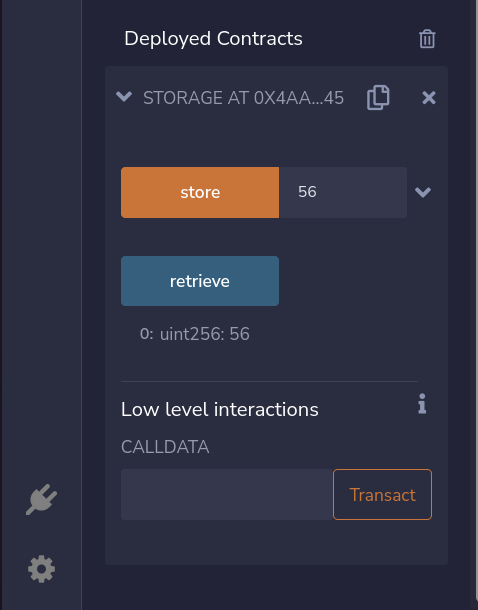 In the Parallax client terminal, the following logs confirm that the transaction was successful (the actual values will vary from the example below):
to address is the deployment address of the contract. The value entered into Remix is now in storage at that contract address. This can be retrieved using Remix by calling the retrieve function - to do this simply click the retrieve button. Alternatively, it can be retrieved using web3.getStorageAt using the Parallax client Javascript console. The following command returns the value in the contract storage (replace the given address with the correct one displayed in the Parallax client logs).
0x000000000000000000000000000000000000000000000000000000000000000038 corresponds to a value of 56 entered as a uint256 to Remix. After converting from hexadecimal string to decimal number the returned value should be equal to that provided to Remix in the previous step.
Reusing —datadir
This tutorial used an ephemeral blockchain that is completely destroyed and started afresh during each dev-mode session. However, it is also possible to create persistent blockchain and account data that can be reused across multiple sessions. This is done by providing the--datadir flag and a directory name when starting the Parallax client in dev-mode.
Re-using accounts
The Parallax client will fail to start in dev-mode if keys have been manually created or imported into the keystore in the--datadir directory. This is because the account cannot be automatically unlocked. To resolve this issue, the password defined when the account was created can be saved to a text file and its path passed to the --password flag on starting the client, for example if password.txt is saved in the top-level parallax directory:
--datadir and --dev flags are used and a key has been manually created or imported into the keystore.
Summary
This tutorial has demonstrated how to spin up a local developer network using the Parallax client. Having started this development network, a simple contract was deployed to the developer network. Then, Remix was connected to the local Parallax client and used to deploy and interact with a contract. Remix was used to add a value to the contract storage and then the value was retrieved using Remix and also using the lower level commands in the Javascript console.Adapted from Developer mode in the go-ethereum documentation, © The go-ethereum Authors. See the third-party notices.